Assigning and re-assigning tasks with Safety Matters is simple. Log in to the Safety Matters App using your unique credentials. The app should automatically open up to the ‘Dashboard’ page.
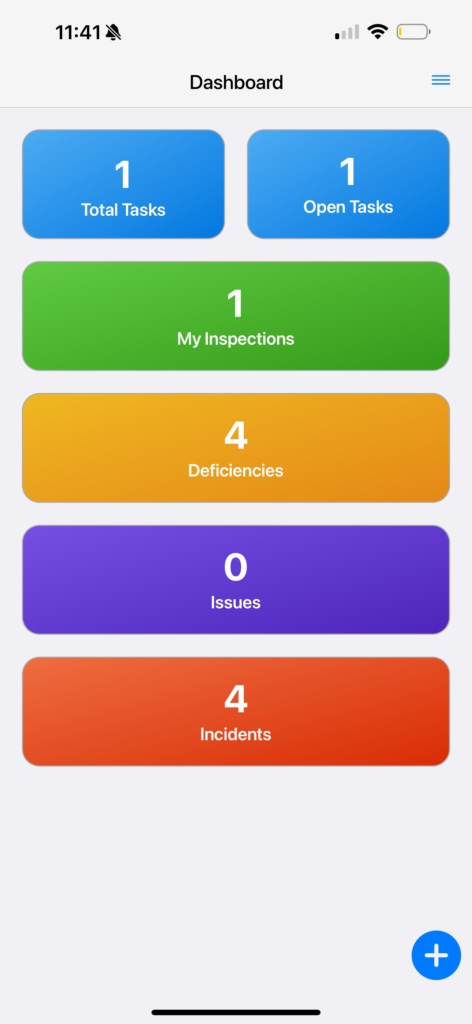
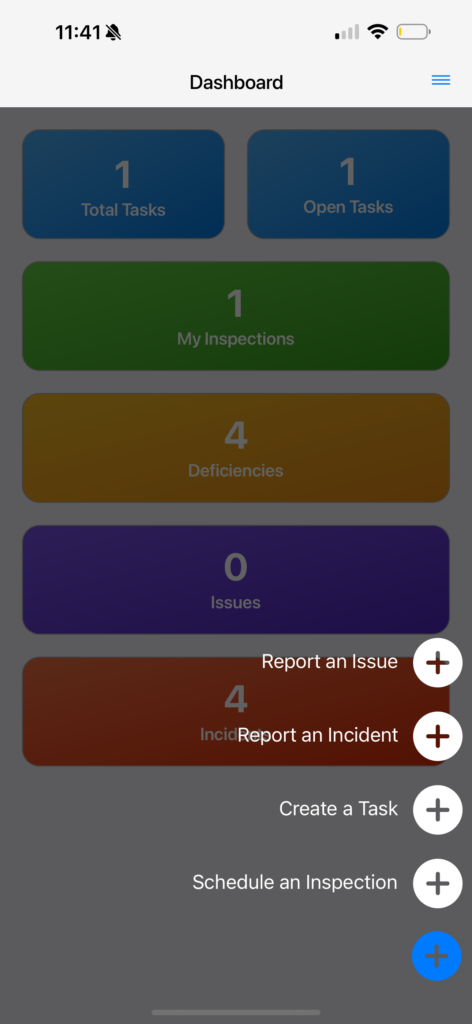
Select the blue ‘+’ icon at the bottom right hand of the screen. You will see four different options pop up. Select the white ‘+’ that reads ‘Create a Task’.
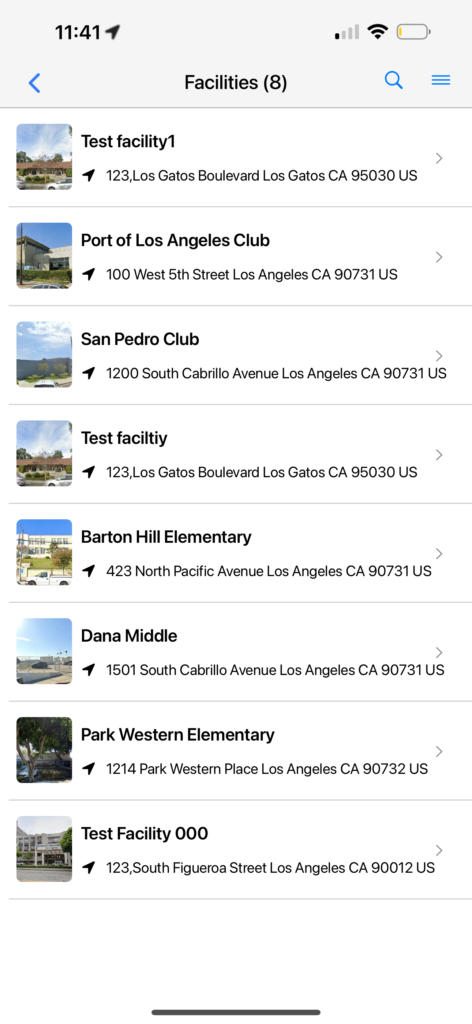
You will be asked for the location at which your task will take place. Select the facility related to your task.
You will be asked to select an assignee for the task as well as provide a task description.
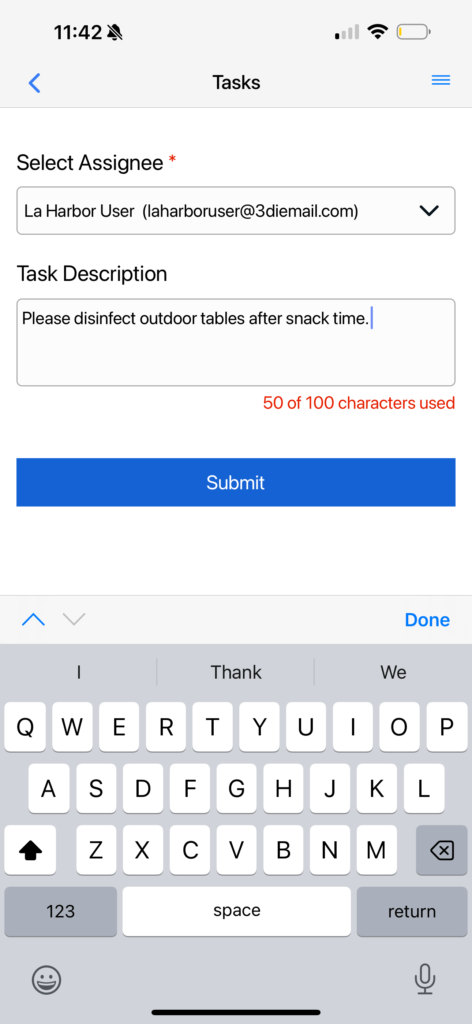
Select ‘Submit’ to confirm your task creation. Now you may return to the main menu or view the task you just assigned.
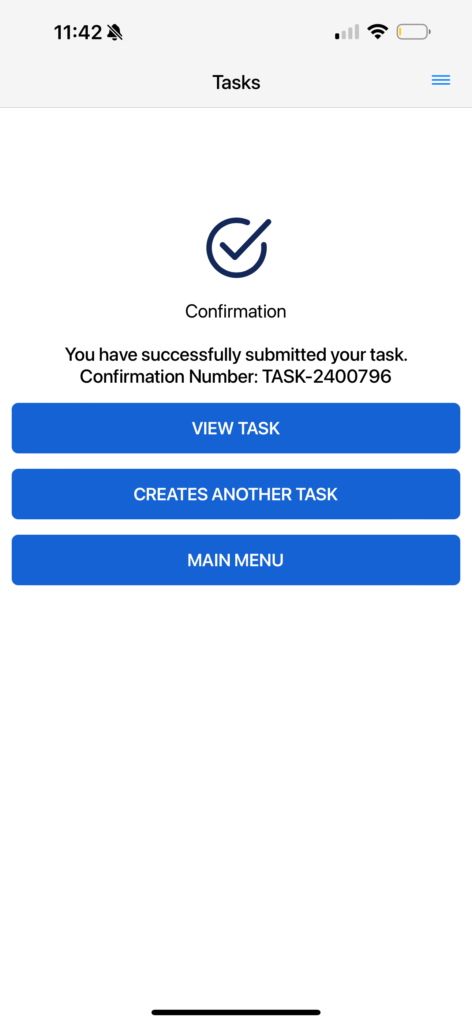
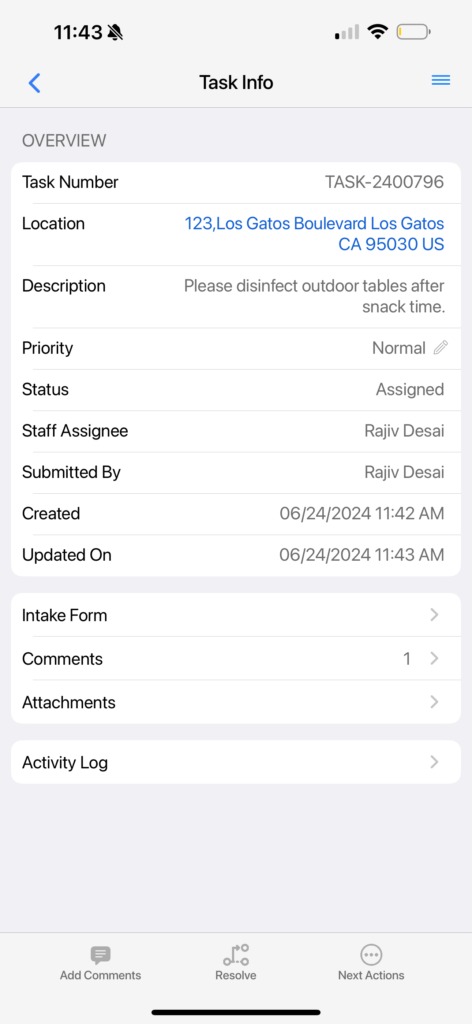
After creating a task, it is easy to re-assign the task to another staff member or management personnel. Start by going to the main menu and selecting ‘Open Tasks’. Select any one task to see related task info.
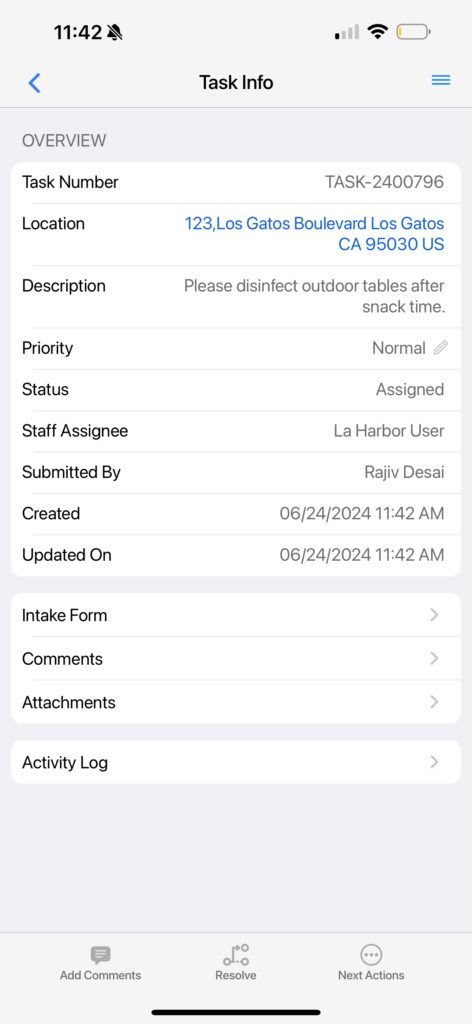
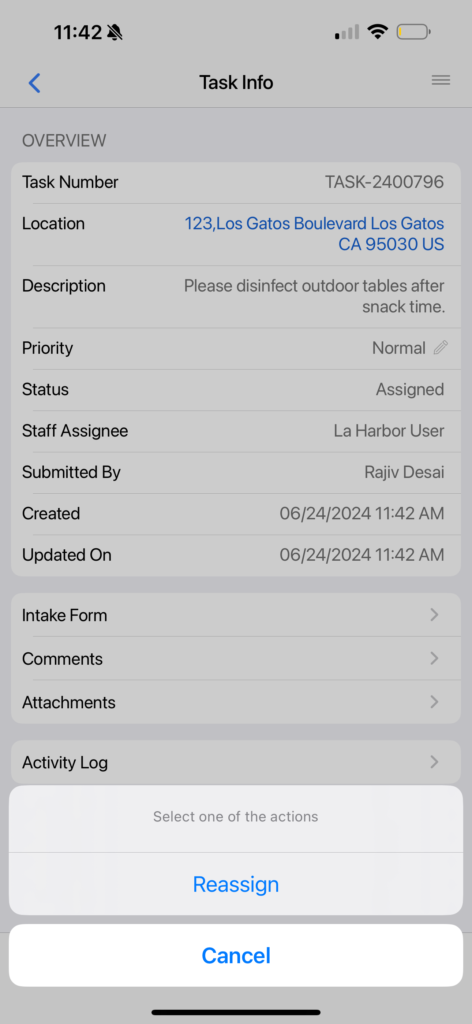
Once you are on the ‘Task Info’ page, select the circle icon with three dots inside that reads ‘Next Actions’.
A pop-up message will ask if you would like to reassign the task. Confirm by selecting ‘Reassign’.
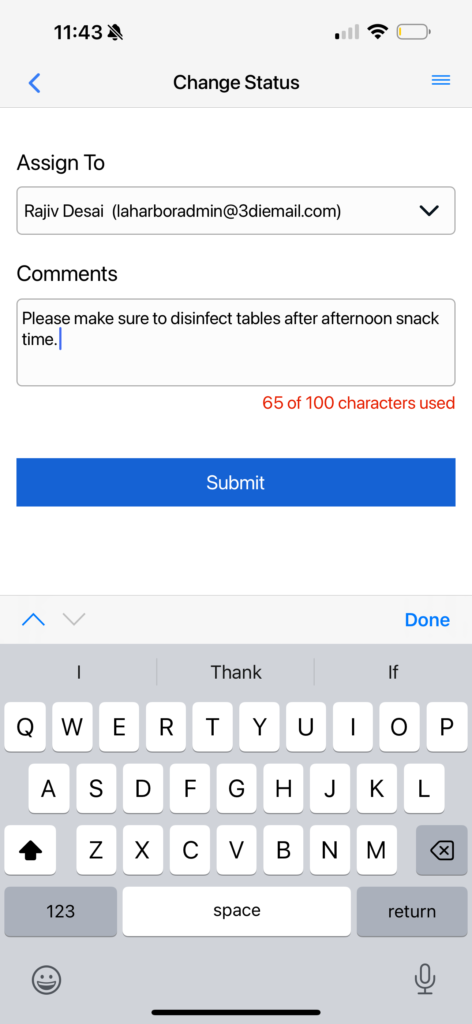
You should now see the ‘Change Status’ page. Here you can assign task to a different organization member as well as add any relevant comments.
Your ‘Task Info’ will now show the updated assignee information as well as any comments that may have been added.